📚
Transitions ready to place
Transitions shipped with the plugin, installed on first launch, each with its own preview. Your own presets join the same catalog.
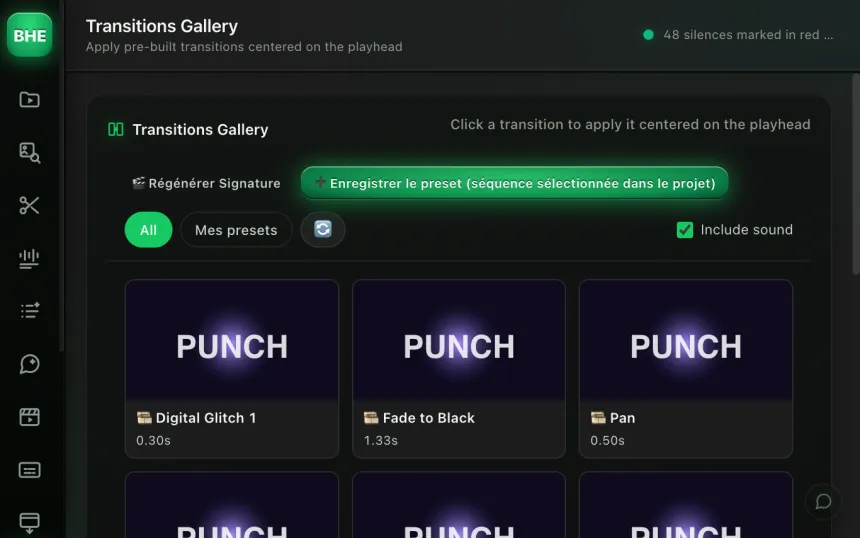
The transitions shipped with the plugin and the ones you save yourself, in one catalog with hover previews. One click places a transition at the playhead; Auto Transition places them across the whole timeline, at the strongest moments.
macOS · Premiere Pro 2025+ · Windows in closed beta · 14-day trial
Three reasons editors switch to Transitions Gallery.
Transitions shipped with the plugin, installed on first launch, each with its own preview. Your own presets join the same catalog.
When a preset contains a sound, it's placed with the transition, and you already hear it in the hover preview. A checkbox lets you turn it off.
Auto Transition finds the cuts on your V1 track and places a few transitions at the most marked moments, not one on every cut. You review the plan, then you place.
The transitions shipped with the plugin install on first launch. The presets you save are added to them, in all your projects.
Filter by category or favorites, hover a card to see its preview with sound. A card with variants opens the choice of its variants.
One click places the transition centered on the playhead. For the whole timeline, Auto Transition picks the moments: without AI using its rules, or with the AI reading your transcript.
On first launch, the plugin installs its transitions: zooms, pans in eight directions, rotation, shake, fade to black. Each one has its video preview and is placed in your sequence's format, horizontal or vertical. You can duplicate them to make your own variants.
The result: your transitions in one place, in all your projects.
Auto Transition finds the cuts on your V1 track and proposes a plan. Without AI, its rules give a regular, varied rhythm; with AI, it reads your transcript and picks the best moments. Tick several transitions: the plan picks among them without using the same one twice in a row. Nothing is placed until you click “Place the transitions”.
Intensity: light (one cut in 6) · medium (one in 4) · heavy (one in 3)
Select your layers on the timeline, click “Save preset” and give it a name: the plugin adds it to your library and renders its preview on its own. The cut point is set with a marker, and a right-click on the card files it into a category. Your preset joins the catalog and Auto Transition, in all your projects.
8 base categories: Zoom · Pan · Rotation · Shake · Glitch · Fade · Impact · Other. You can create your own: they show up in the catalog automatically.
Yes, when the preset contains one: it's placed with the transition, and the hover preview lets you hear it first. A checkbox lets you turn it off.
It finds the cuts on your V1 track and proposes a plan: roughly one transition every 6, 4 or 3 cuts depending on the intensity, never two too close together, and none in the first or last seconds. With AI, it reads your transcript to pick the moments. Untick what you don't want, then place.
Yes. Every transition you place stays on your timeline like your other clips: you can move or delete it, and Cmd+Z takes you back.
Yes. Select your layers on the timeline, click “Save preset” and give it a name. The cut point is set with a marker, the category with a right-click on the card (or create your own). The preset joins the catalog and Auto Transition, in all your projects.
Yes. A preset keeps all its layers, video and audio, and is placed above your edit without overwriting what's already there.
Transitions Gallery is one of 13 tools (plus 10 micro-tools) in the panel. Have a look at the others.
Try Transitions Gallery free for 14 days. Card required · cancel online anytime from your account.
Start the free trial →Cancel online anytime from your account · Email support