🎧
2 to 8 speakers, 1 to 8 cameras
Each speaker has a name and a color that follow them everywhere in the panel. Each camera frames one or more people; the one that frames everyone becomes the wide shot.
Assign each audio track to a speaker, pick how often to cut to the wide shot, and the plugin cuts between cameras automatically. 2 to 8 speakers, 1 to 8 cameras, one color per speaker in the panel, state saved per sequence.
macOS · Premiere Pro 2025+ · Windows in closed beta · 14-day trial
Three reasons editors switch to Multi-speaker Podcast.
Each speaker has a name and a color that follow them everywhere in the panel. Each camera frames one or more people; the one that frames everyone becomes the wide shot.
The plugin analyzes the audio of each track to detect who is talking at every moment. The cuts land automatically on the right speaker.
Set how often to cut wide and the plugin inserts cuts to the group camera automatically. No more monotonous edits.
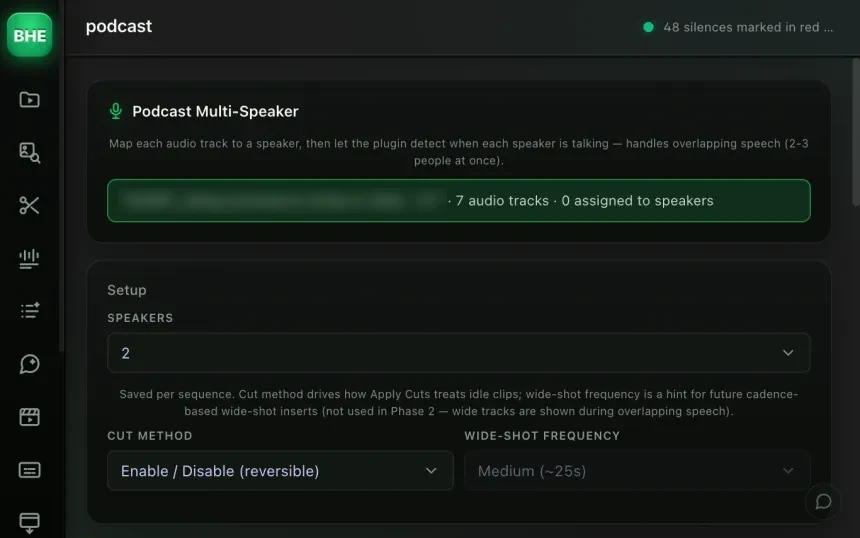
Name each speaker, give them a color, then assign their audio track. Each camera gets the people it frames. The mapping stays saved for that sequence.
Set the cut method and how often to cut wide. The plugin knows when to slip a group shot between two speakers.
Audio analysis detects who is talking at every moment and places the cuts on the right video track. You get a clean multicam edit.
Each speaker has a color in the panel, so you spot them everywhere. One camera = one video track: you tick the people it frames. Tick them all and it becomes the wide shot, the one that plays when several people talk at once.
The result: the right camera on every line, even with 8 speakers.
Speaker mapping, colors and cut settings are saved per sequence. You move from one podcast project to another without setting anything up again. The state is cached locally and restored automatically when you come back to a sequence.
Multi-project: each sequence has its own mapping. No mix-ups between your podcasts.
2 to 8 speakers, and 1 to 8 cameras. Each speaker has a name and a color in the panel; a camera that frames everyone serves as the wide shot.
With one track per speaker, the plugin listens to each track in turn (solo), finds its silences and works out when each person talks. With a single track for everyone, the AI (ElevenLabs or OpenAI, with your key) separates the voices. When several people talk at once, the wide shot plays.
Yes. The cuts are regular edits on the timeline. You can move, delete or adjust each one by hand after the automatic edit.
Yes. The full state (mapping, colors, cut settings) is cached per sequence and restored automatically next time you open it.
Yes. The plugin analyzes the overall signal of each track, mono or stereo. What matters is having a separate track per speaker.
Multi-speaker Podcast is one of 13 tools (plus 10 micro-tools) in the panel. Have a look at the others.
Try Multi-speaker Podcast free for 14 days. Card required · cancel online anytime from your account.
Start the free trial →Cancel online anytime from your account · Email support