🎨
10 visual styles
Motion Design, Claymation, 2D Line, 3D Cartoon, Photoreal Cinema, Neon Noir, Paper Cutout, Glassmorphism, Modern Motion, Minimal Vector. Each style enforces its art direction across every shot.
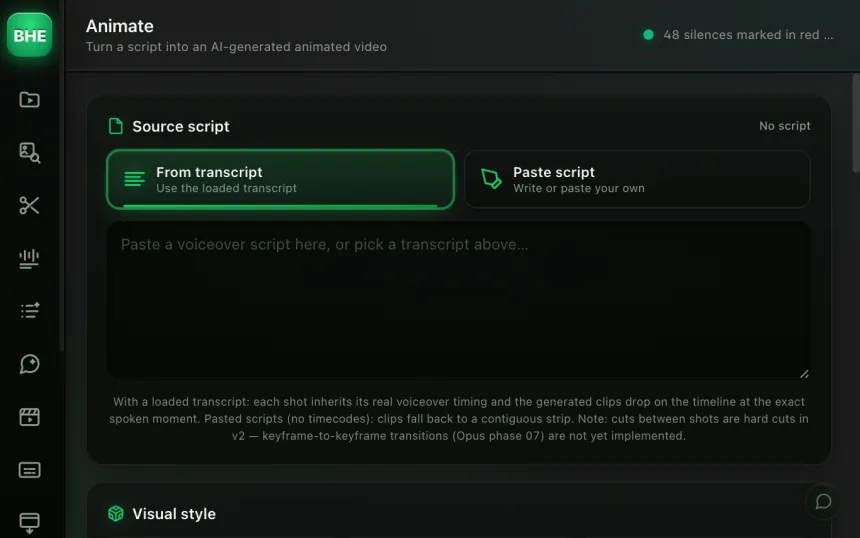
Animate turns your script or transcript into AI video clips in 6 phases. 10 visual styles, 5 generation models, automatic placement on the "Animate" track at the exact time under your voiceover.
macOS · Premiere Pro 2025+ · Windows in closed beta · 14-day trial
Three reasons editors switch to Animate.
Motion Design, Claymation, 2D Line, 3D Cartoon, Photoreal Cinema, Neon Noir, Paper Cutout, Glassmorphism, Modern Motion, Minimal Vector. Each style enforces its art direction across every shot.
Context extraction, shot breakdown, style expansion, cinematic description, video generation, final assembly. Each phase builds on the previous one.
Every generated clip is imported and placed on the "Animate" track at the exact timecode of its sentence in the script. No manual drag and drop.
Paste your voiceover text or use your sequence's transcript directly. Animate detects the structure and the overall context of your video.
Motion Design, Claymation, Photoreal Cinema, Neon Noir... The chosen style applies to every generated shot, for total visual consistency.
The pipeline breaks your script into shots, writes a cinematic description for each, runs video generation through KIE (Sora 2, Veo 3.1, Kling 3.0, Seedance 2.0, WAN 2.2) and places each clip at the right timecode.
Each style enforces a complete art direction: color palette, textures, lighting, type of camera movement. The same script gives radically different results depending on the style.
The styles: Motion Design · Claymation · 2D Line · 3D Cartoon · Photoreal Cinema · Neon Noir · Paper Cutout · Glassmorphism · Modern Motion · Minimal Vector
To avoid visual monotony, the pipeline enforces variety on three axes: shot size (close-up, medium, wide, extreme close-up), purpose (illustration, metaphor, transition, mood), and camera movement (static, dolly, pan, slow zoom).
The result: even with 20 shots, none looks like the one before. The final video has a professional visual rhythm with no manual work.
Phase 1: script import. Phase 2: overall context extraction (subject, tone, world). Phase 3: breakdown into N timed shots. Phase 4: the chosen visual style expanded onto each shot. Phase 5: detailed cinematic description (shot size, camera movement, lighting). Phase 6: video generation and placement on the timeline.
Sora 2, Veo 3.1, Kling 3.0, Seedance 2.0 and WAN 2.2. The plugin uses KIE (the same engine as B-Roll Studio) to send the prompts to the model of your choice. Each has its strengths: Veo 3.1 for realism, Kling 3.0 for speed, and so on.
Yes. After the breakdown (phase 3) you can edit every shot: change the prompt, change the shot size, delete or add one. Generation only starts when you confirm.
Usually between 15 and 20 shots. The pipeline adapts the count to the density of the script: a text with many distinct ideas produces more shots than a linear narrative.
On a dedicated video track named "Animate". Each clip is locked to the exact timecode of its sentence in the script. If you already have a voiceover on the timeline, the clips go underneath it, in sync.
Animate is one of 13 tools (plus 10 micro-tools) in the panel. Have a look at the others.
Try Animate free for 14 days. Card required · cancel online anytime from your account.
Start the free trial →Cancel online anytime from your account · Email support