🎧
6 transcription engines
Local Whisper (free), CrisperWhisper, OpenAI, ElevenLabs, Google and Azure, with your own keys for the cloud ones. Every engine returns word-by-word timestamps.
Transcript AI transcribes your video with 6 engines to choose from and analyzes every sentence to place 10+ types of colored markers automatically. Chapters, B-Roll, zooms, motions, CTAs: everything is prepared, you just edit.
macOS · Premiere Pro 2025+ · Windows in closed beta · 14-day trial
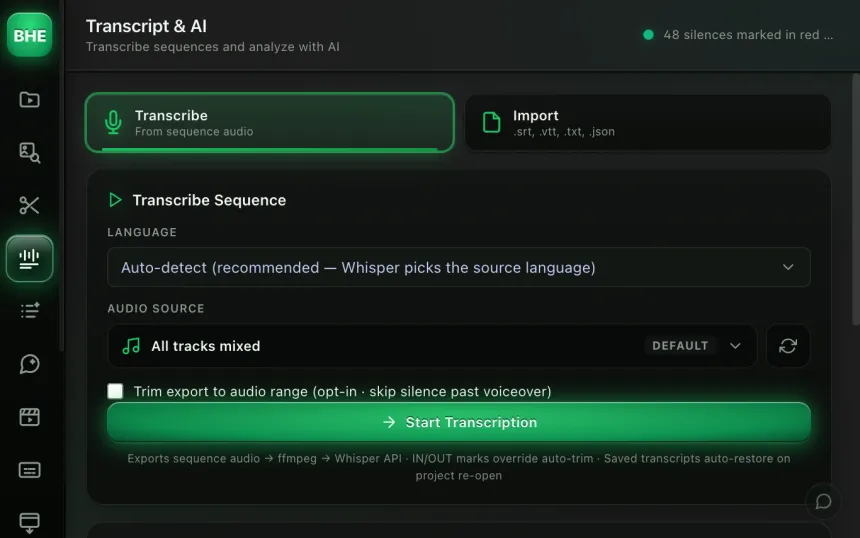
Three reasons editors switch to Transcript AI.
Local Whisper (free), CrisperWhisper, OpenAI, ElevenLabs, Google and Azure, with your own keys for the cloud ones. Every engine returns word-by-word timestamps.
Chapter, broll, motion (8 sub-categories), bullet, cta, location, data, caption, definition, question. Each marker carries its type and an action prompt.
The "chapter" markers are exported in YouTube format (timecodes + titles). Paste into your description, done.
Pick one of the 6 engines. Transcription runs on the audio of your active sequence and returns word-by-word timestamps.
Every sentence is analyzed by the AI. It spots the chapters, the moments to place B-Roll, the zooms, the motions, the CTAs, and puts a colored marker on your timeline.
A broll marker gives you a prompt to generate the video. A motion marker tells you which movement (zoom, pan, tilt...). A chapter marker gives you the chapter title.
Every marker is typed: chapter, broll, motion with 8 sub-categories (zoom-in, zoom-out, pan, tilt, dolly, truck, crane, steadicam), bullet, cta, location, data, caption, definition, question.
The result: hovering your timeline, you know at once what goes where. No need to reread the script.
Every broll or motion marker automatically generates a prompt tailored for Veo3. The prompt carries the context of the sentence, the expected shot type and the visual style. You can send it straight to B-Roll Studio to generate the clip.
Example: "Aerial view of a logistics warehouse at sunrise, drone moving forward, golden light", generated automatically from the sentence "we store everything in our 3,000 m² warehouse".
Six: local Whisper (free, on your machine), CrisperWhisper advanced transcription (local, verbatim), OpenAI Whisper, ElevenLabs Scribe, Google and Azure Whisper. The cloud engines use your own keys. You can switch engine at any time.
A marker is a colored point on your Premiere Pro timeline, with a name and a comment. Each marker carries its type (chapter, broll, motion, cta, and so on). The comment holds the instruction: chapter title, generation prompt, camera movement type, and so on.
The AI takes the context of the transcribed sentence and the marker type, and writes a fitting cinematic prompt. The prompt is stored in the marker's comment. You can edit it before sending it to B-Roll Studio.
All the "chapter" markers are collected with their timecode and title. The plugin generates a YouTube-format text (00:00 Introduction, 02:15 First point, and so on) that you paste into your description.
Transcription supports every language covered by the 6 engines (50+ for Whisper). AI analysis and markers work in French and English. Support for other languages in the analysis is in progress.
Transcript AI is one of 13 tools (plus 10 micro-tools) in the panel. Have a look at the others.
Try Transcript AI free for 14 days. Card required · cancel online anytime from your account.
Start the free trial →Cancel online anytime from your account · Email support